Torch Tool
The Torch Tool is an in-game editor for creating and editing Ped and MP Ped torch presets. It guides you through selecting the torch mount, choosing the clothing or prop target, positioning the torch, and exporting or saving the finished preset.
The tool creates entries for torches.json. You do not need to build the JSON by hand.
Before You Start
- Ensure you have the
InfernoTorches.ToolACE permission. - Spawn the Ped or MP Ped you want to configure.
- Pre-configure the Ped with the torch clothing component or prop already equipped when you want to create a component-specific preset.
- Run
/torch tool. If you changedic_torches_command, replacetorchwith your configured command name.
The tool uses your current Ped. It can preview clothing and prop targets while you configure an MP Ped preset.
Create a New Preset
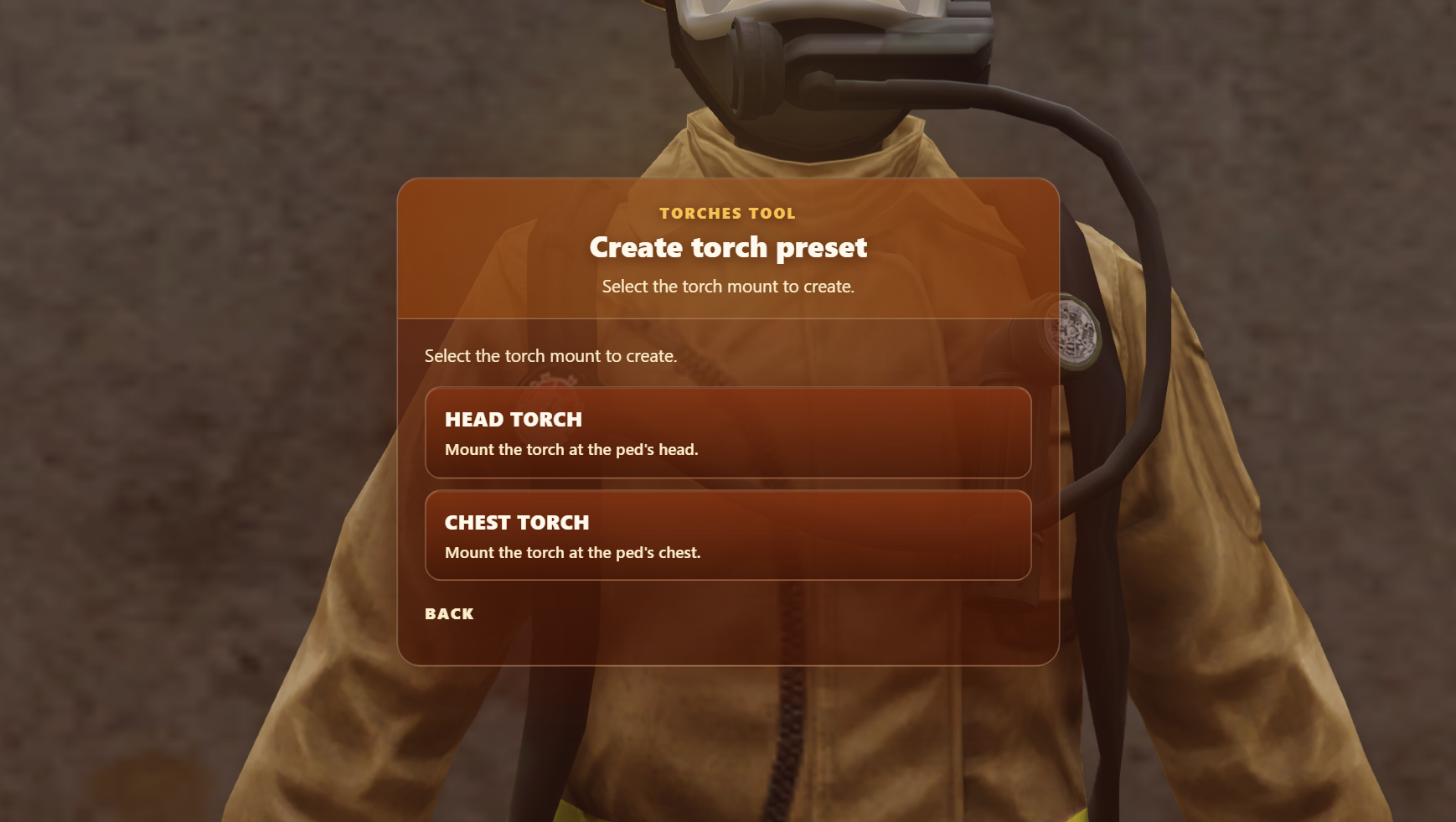
Select Create new, then choose the mount:
- Head torch - mounts the torch at the Ped's head.
- Chest torch - mounts the torch at the Ped's chest.
Select the Target
For a regular Ped, decide whether the preset should match a specific clothing component:
- Match component enabled - select the component and drawable that the preset belongs to. The preset will only match that model when it is wearing the selected combination.
- Match component disabled - create a model-only preset. The preset will match the model regardless of its current clothing or drawable. This is useful for non-MP Peds whose torch position does not depend on their clothing.
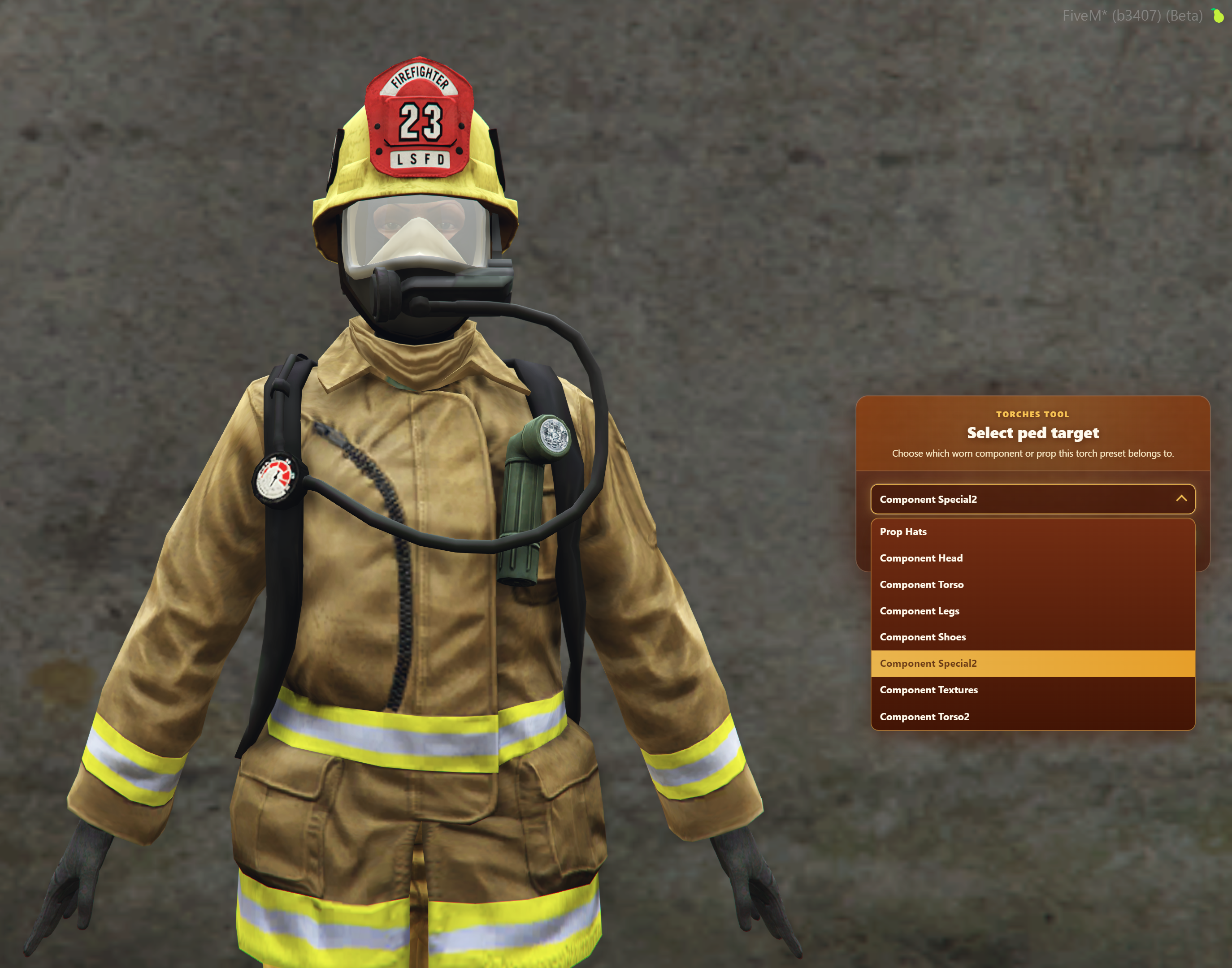
For an MP Ped, select the clothing component or prop that the preset belongs to. The tool previews target selections on the current Ped so you can confirm the correct item before placing the torch.
Place the Torch
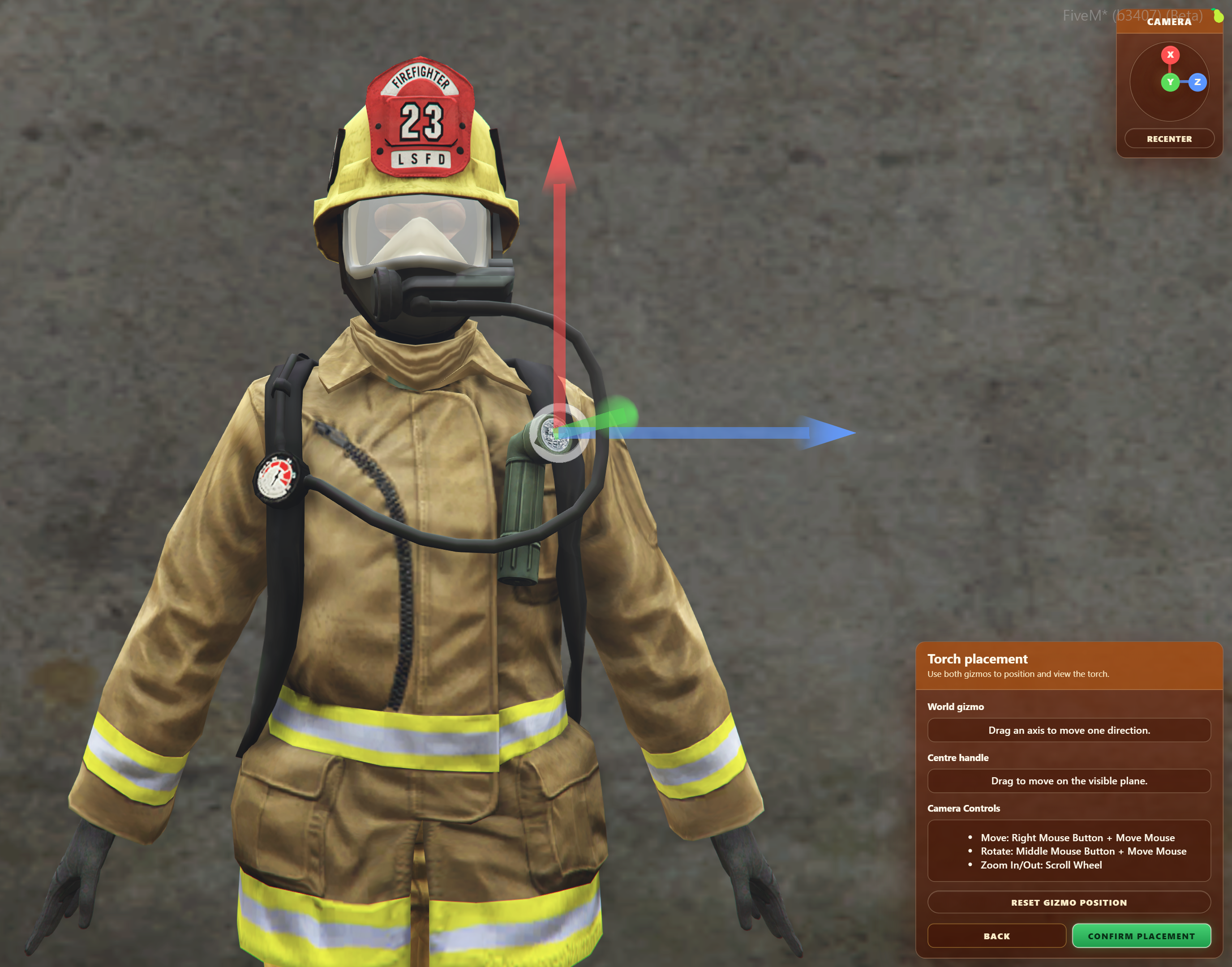
After completing setup, select Next to enter placement mode. The editor opens a camera and a 3D world gizmo around the selected Ped.
Drag an axis on the world gizmo to move the torch along that direction. Drag the centre handle to move it across the visible placement plane. Select Reset gizmo position to restore the default head or chest position.
Control the Camera
Use the placement camera to inspect the torch from different angles:
- Move: hold the right mouse button and move the mouse.
- Rotate: hold the middle mouse button and move the mouse.
- Zoom: use the scroll wheel.
- Direction snapping: select a direction on the camera gizmo.
- Recenter: select Recenter to return the camera to its default view.
The camera transitions smoothly between snapped views and returns to gameplay when the tool closes.
Confirm the Preset
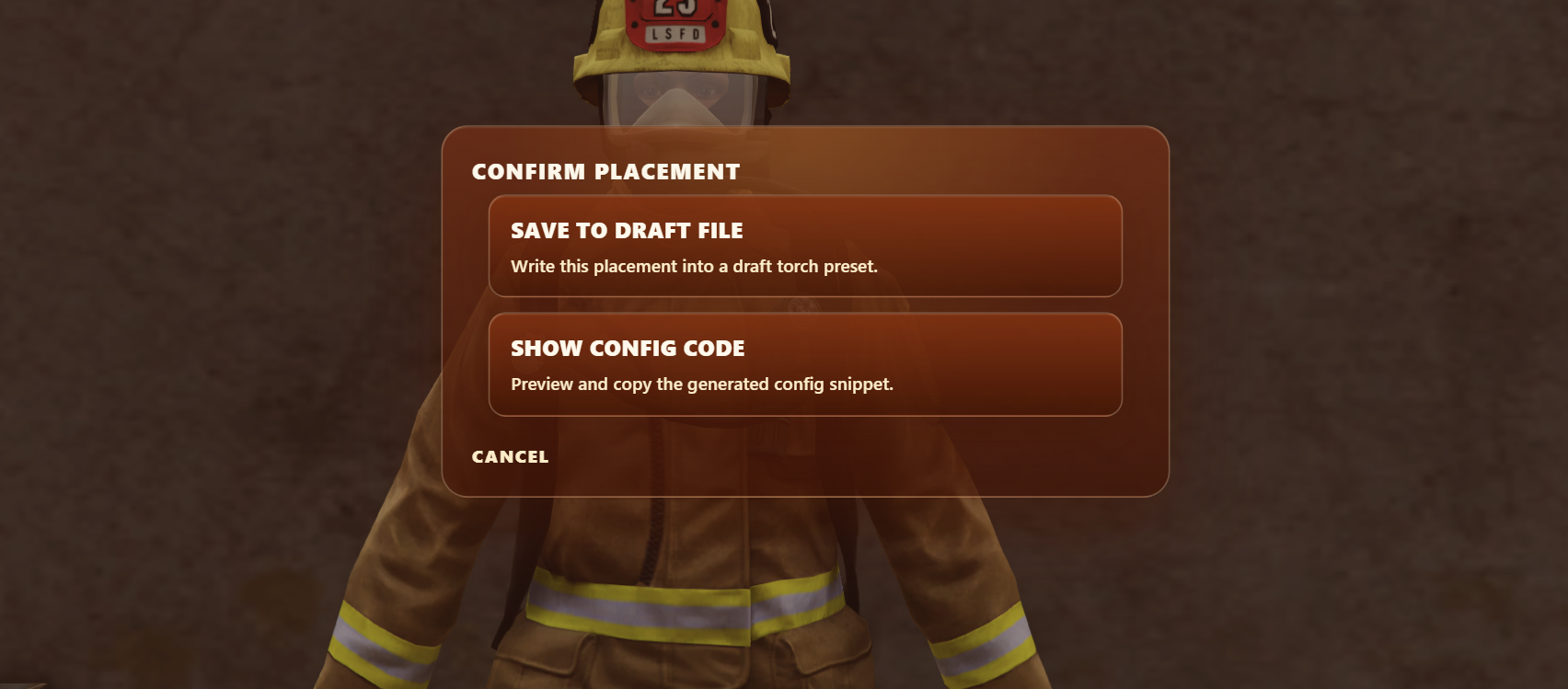
Select Confirm placement when the torch is correctly positioned. Choose one of the following options:
- Save to draft file - saves the preset server-side in
draft-torches.json. - Show config code - displays the generated JSON and provides a copy button.
If a matching preset already exists, choose Replace existing to overwrite it.
draft-torches.json is a working file. Review the generated preset and copy it into the appropriate peds or mppeds collection in torches.json before using it as a live preset.
Edit an Existing Preset
Select Edit existing from the opening screen. The tool searches both the live and draft preset files for matching entries for the current Ped.
Select a preset to load it, then update its target, mount, and placement just as you would when creating a new preset. For a non-MP preset, the Match component option reflects whether the loaded preset is model-only or component-specific. When editing an MP Ped preset, the tool can update the current Ped's clothing or prop to match the selected preset.
Troubleshooting
I cannot open the tool
Confirm that you have the InfernoTorches.Tool ACE permission and that the resource configuration has been executed with exec @inferno-torches/config.cfg.
No matching preset is found
Confirm that the current Ped model, mount type, and preset file entry match. For a component-specific non-MP preset, also confirm that the current component and drawable match. If you want a non-MP preset to work across clothing variations, edit it with Match component disabled. If you want all Peds to be able to use torches without a matching preset, enable ic_torches_allowAnyPed.
My saved preset is not active in-game
Drafts are saved to draft-torches.json, not the live torches.json file. Copy the reviewed preset into torches.json and restart the resource.